How to get API keys
Create a Console account, generate organisation API keys, register a sandbox app, and collect client secrets and communication keys.
Before your first API call you need credentials from the pasby console. This guide walks through account setup, organisation API keys, app registration, and the secrets you copy into your backend.
Keep all secrets server-side. Never commit API keys, client secrets, or PEM private keys to git or expose them in client-side code.
What you will collect
| Credential | Scope | Used as |
|---|---|---|
| Organisation API key | Organisation (consumer) | x-api-key on every API call — bk-test_ (sandbox) or bk-live_ (production) |
| App client ID | Single app | Authorize flows, OIDC, and flow metadata |
| App secret | Single app | x-access-secret on v2 routes — typically snb_ (sandbox) or prd_ (production) |
| Communication keys | Single app | RSA PEM files to decrypt claims after identification |
Organisations share billing and API keys. Each app has its own client ID, secret, and communication keys. An app runs in Sandbox or Production — not both at once.
See Credentials & environments for base URLs, header reference, and security rules.
Console concepts
Organisation (consumer) — A billing boundary that groups one or more apps. When you finish registration, Console usually creates your first organisation automatically. You can add more from the dashboard.
App — The product integration your users interact with. Apps use the organisation’s API key but have their own client secret and PEM keys for secure communication with pasby.
Service files — Console packages credentials into downloadable zip folders (config.json plus *.pem files). Organisation and app layers each have their own service file.
Step 1 — Create a developer account
Open console.pasby.africa/auth/create and register with your email.
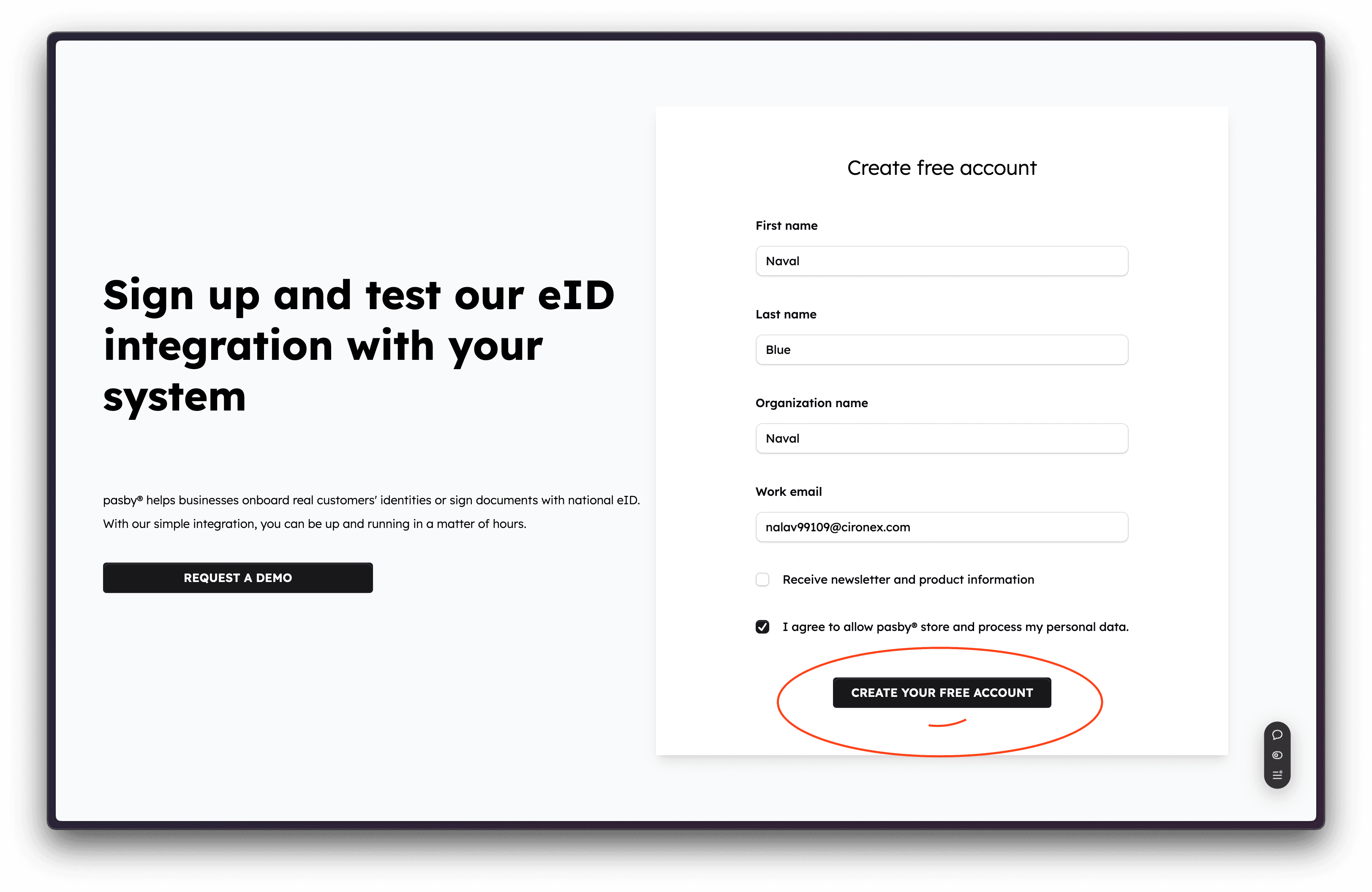
After signup, verify your email from the activation link Console sends you.
You will need a linked pasby eID on your profile before some actions unlock (generating secrets, downloading communication keys). Complete eID linking when Console prompts you.
Step 2 — Confirm your organisation
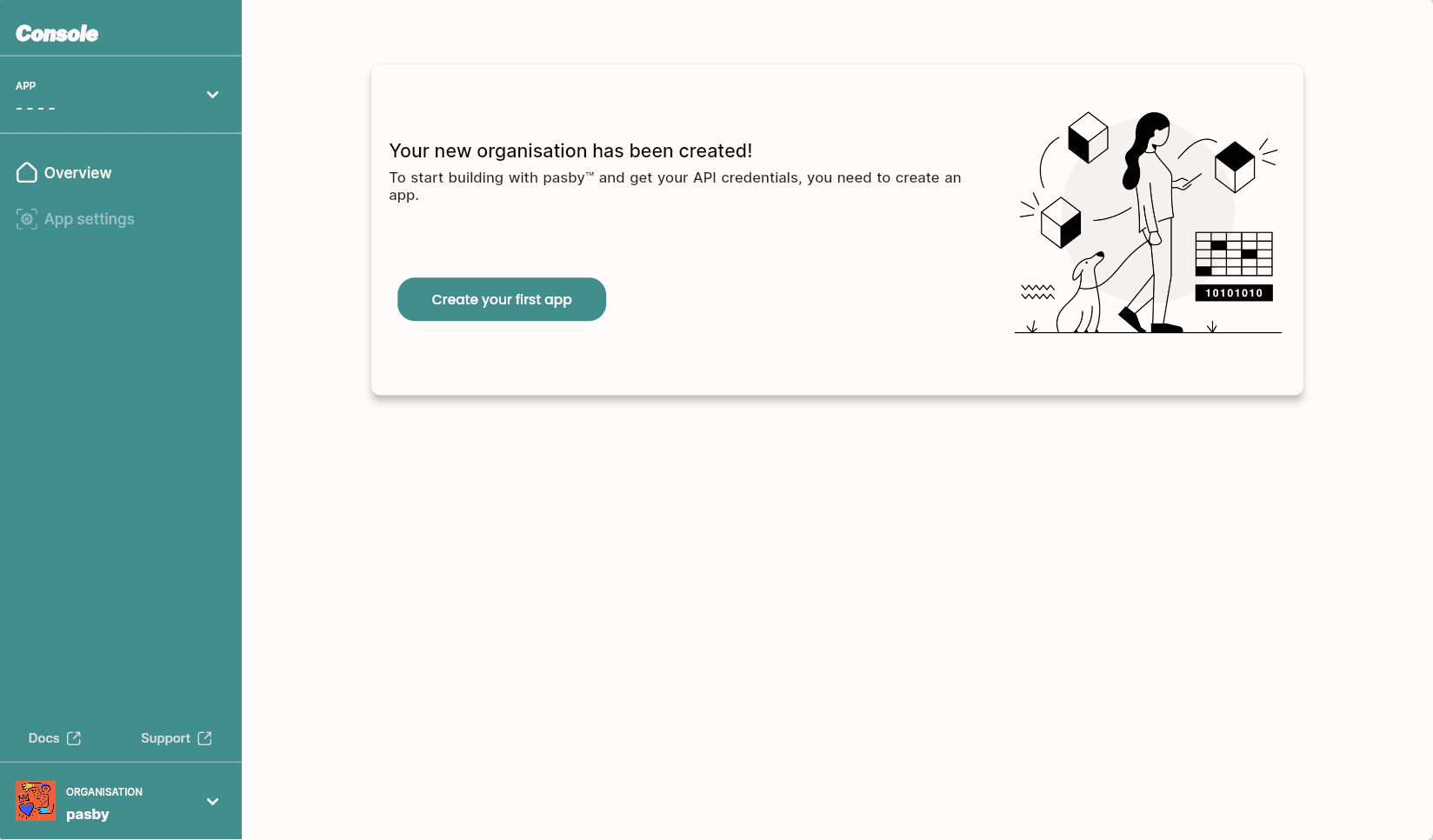
After verification, Console opens your dashboard. Your first organisation is typically already created.
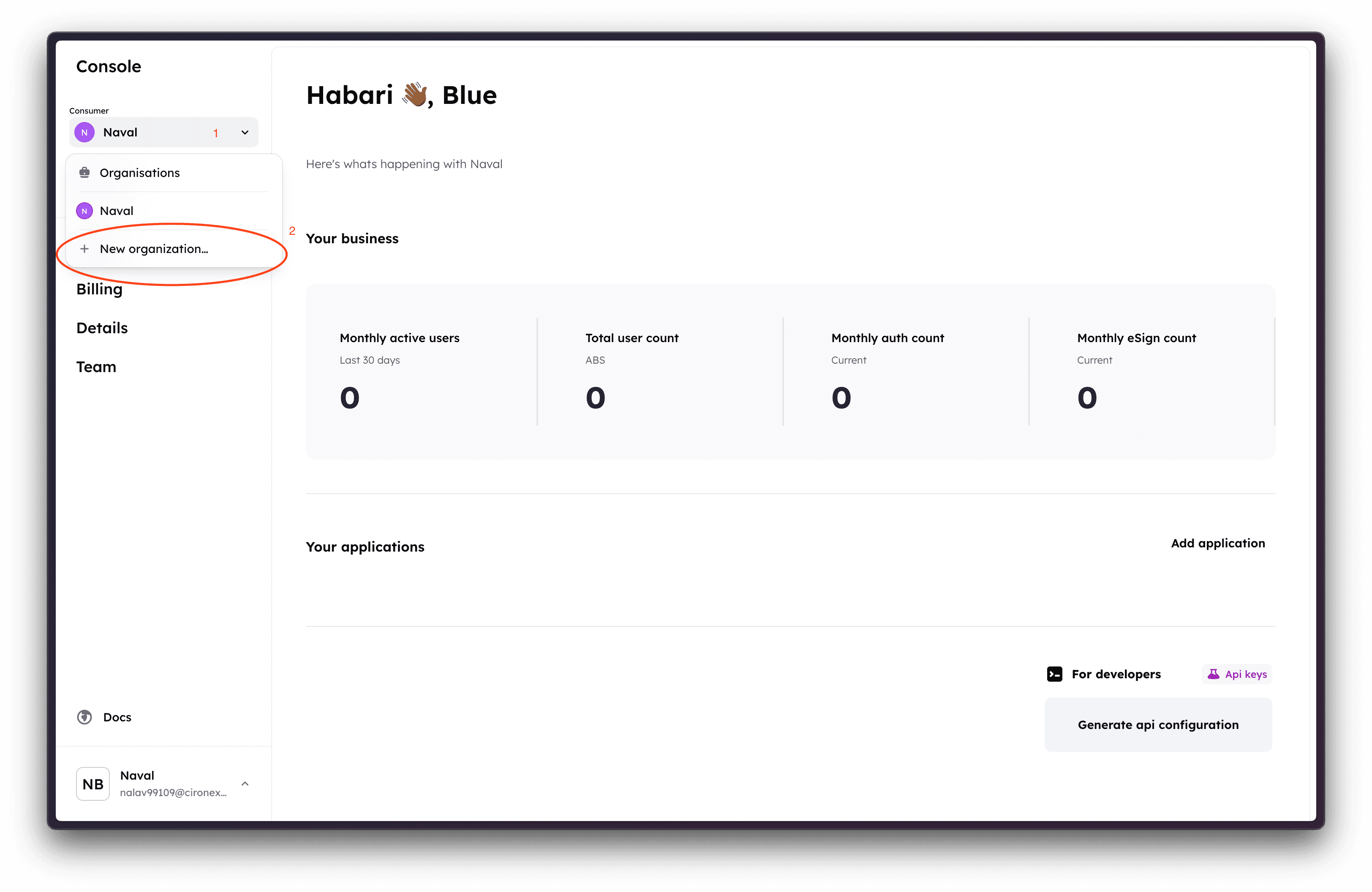
To add another organisation, use Create organisation from the dashboard. A new organisation starts with no apps attached.
Step 3 — Generate organisation API keys
Organisation API keys are issued at the consumer layer. pasby only provides bk-test_ / bk-live_ keys to organisations — not to individual apps.
- Open your organisation dashboard.
- Under For developers, click Generate API configuration.
- Read each confirmation dialog carefully — organisation service files can only be generated once per configuration cycle.
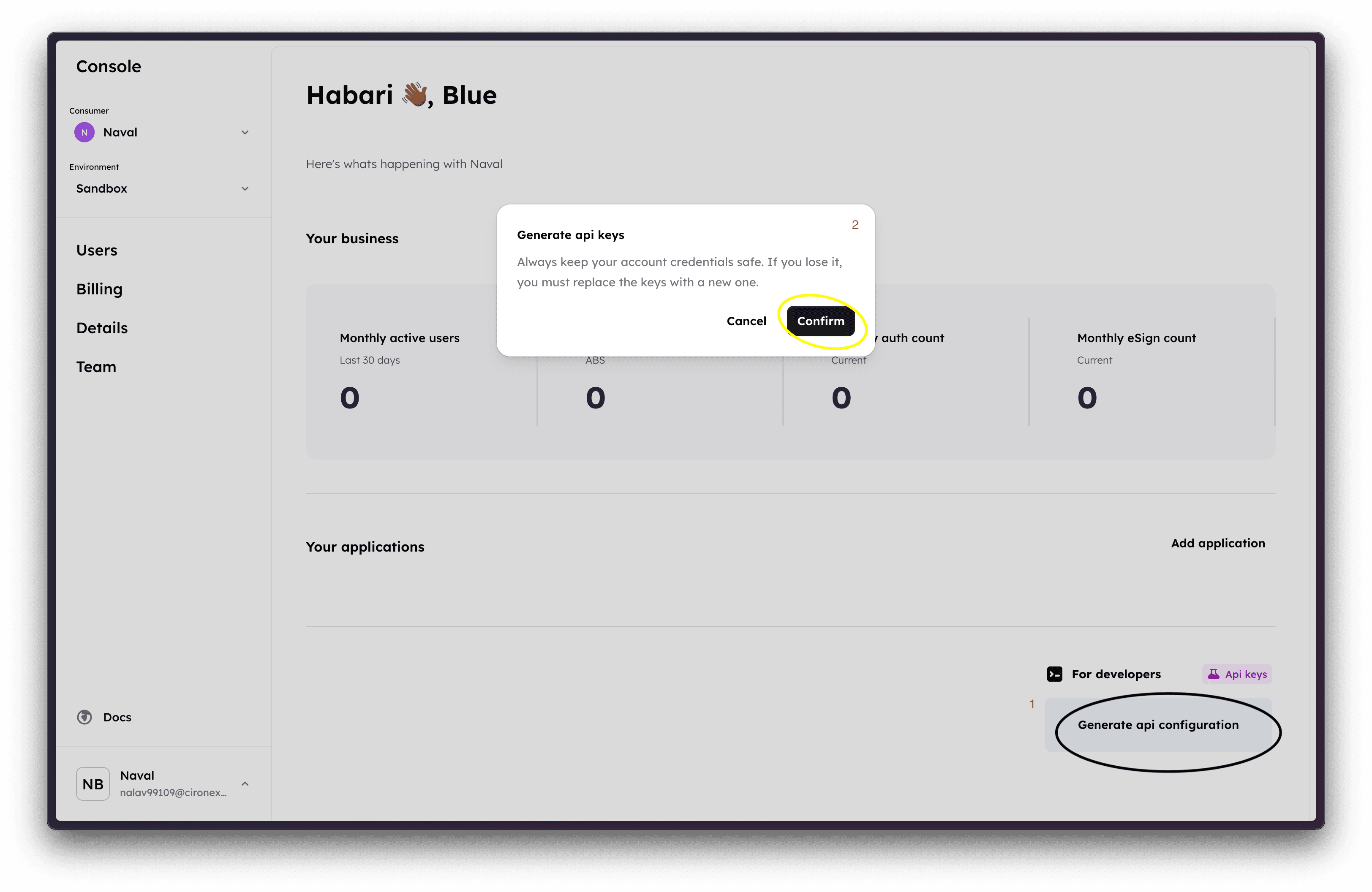
Download the organisation service file when prompted. It contains your API keys and organisation identifiers.
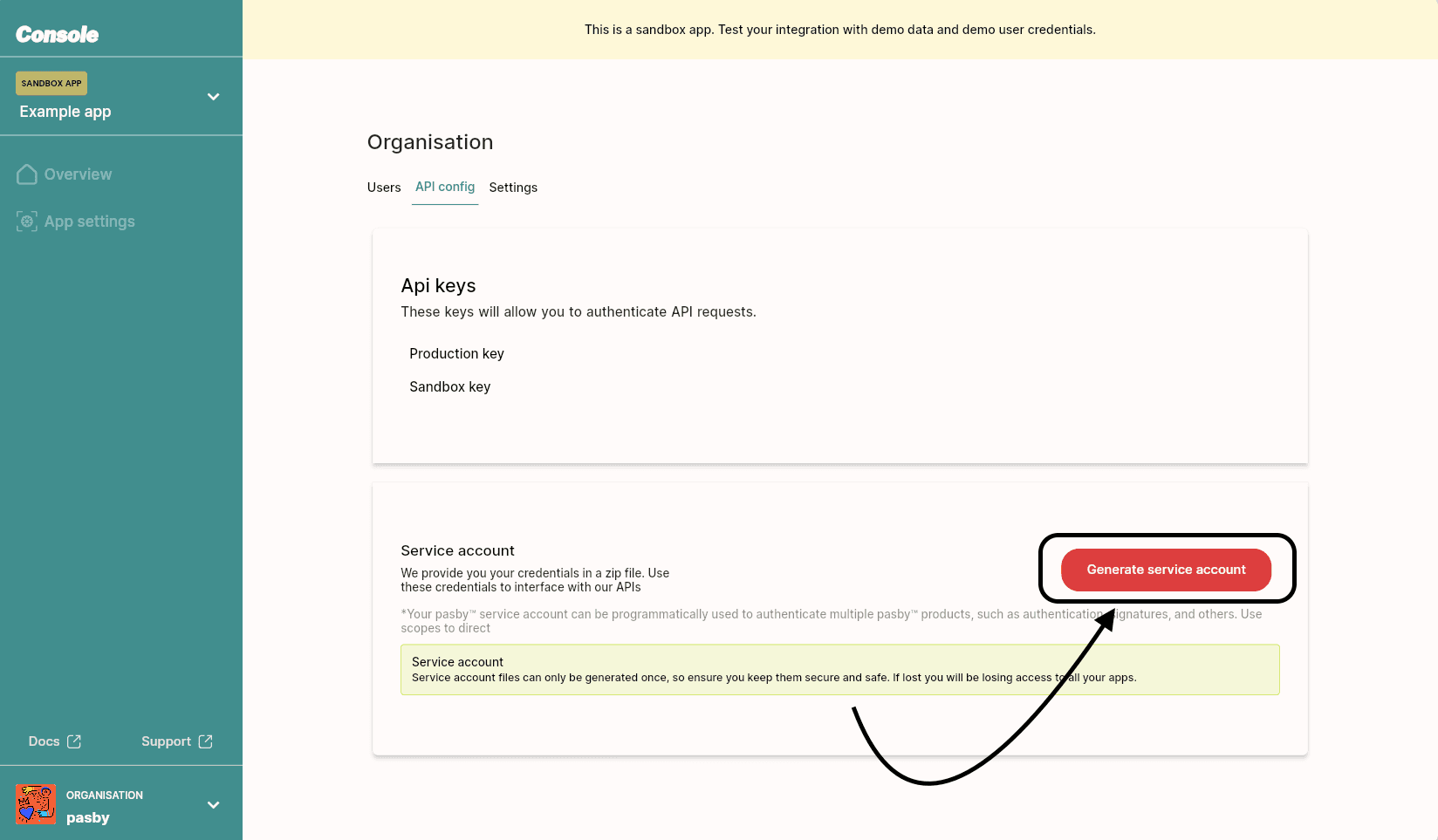
Copy the sandbox key (bk-test_…) for development. Store the production key (bk-live_…) only after billing and production access are approved.
Direct link: Organisation → API config
If your organisation service account is compromised, contact support to rotate credentials without losing existing apps.
Step 4 — Create a sandbox app
Apps are where your users meet pasby flows. Start in Sandbox before requesting production.
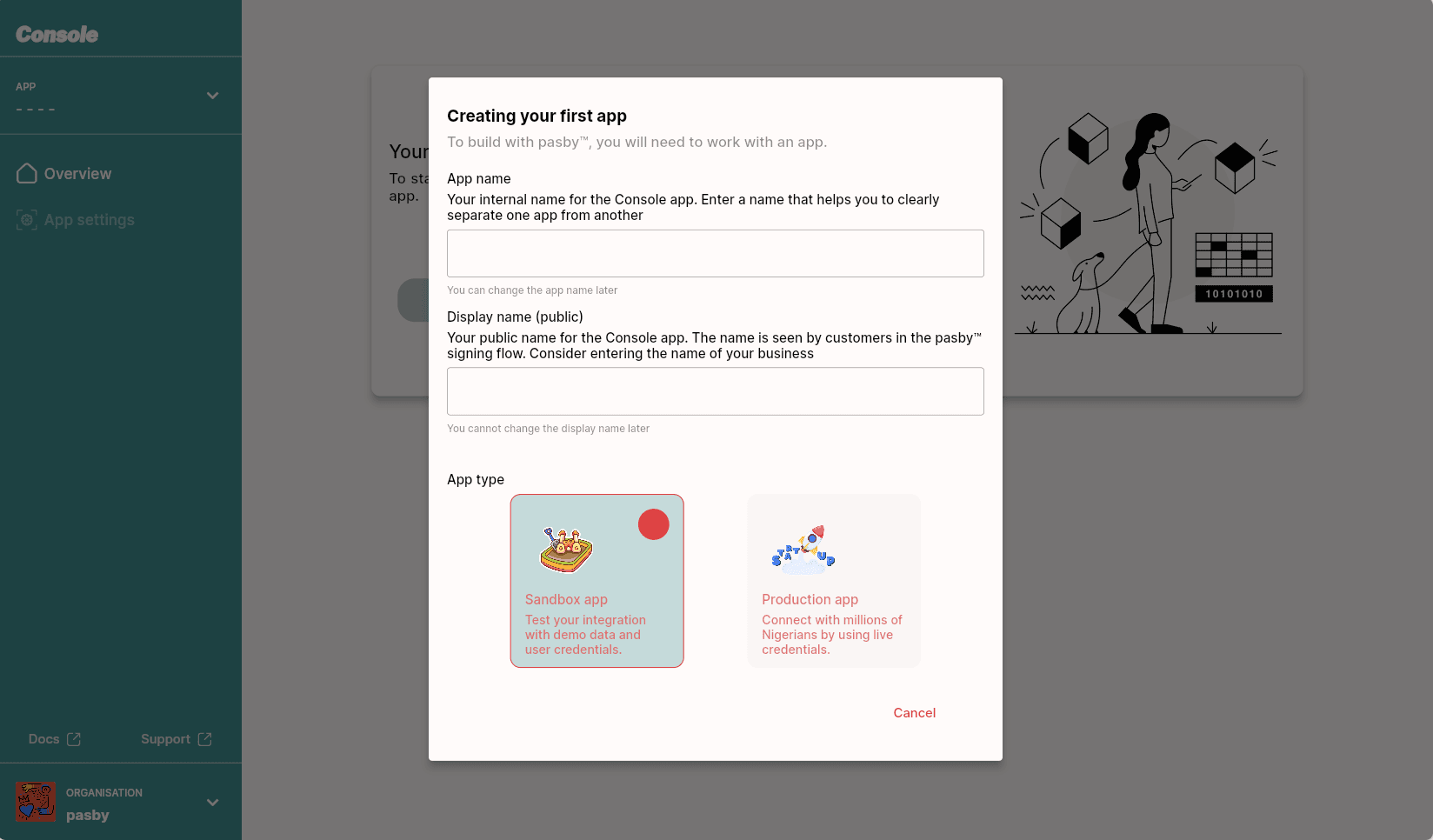
- From the organisation dashboard, click Add application.
- Enter an application name (internal label on Console).
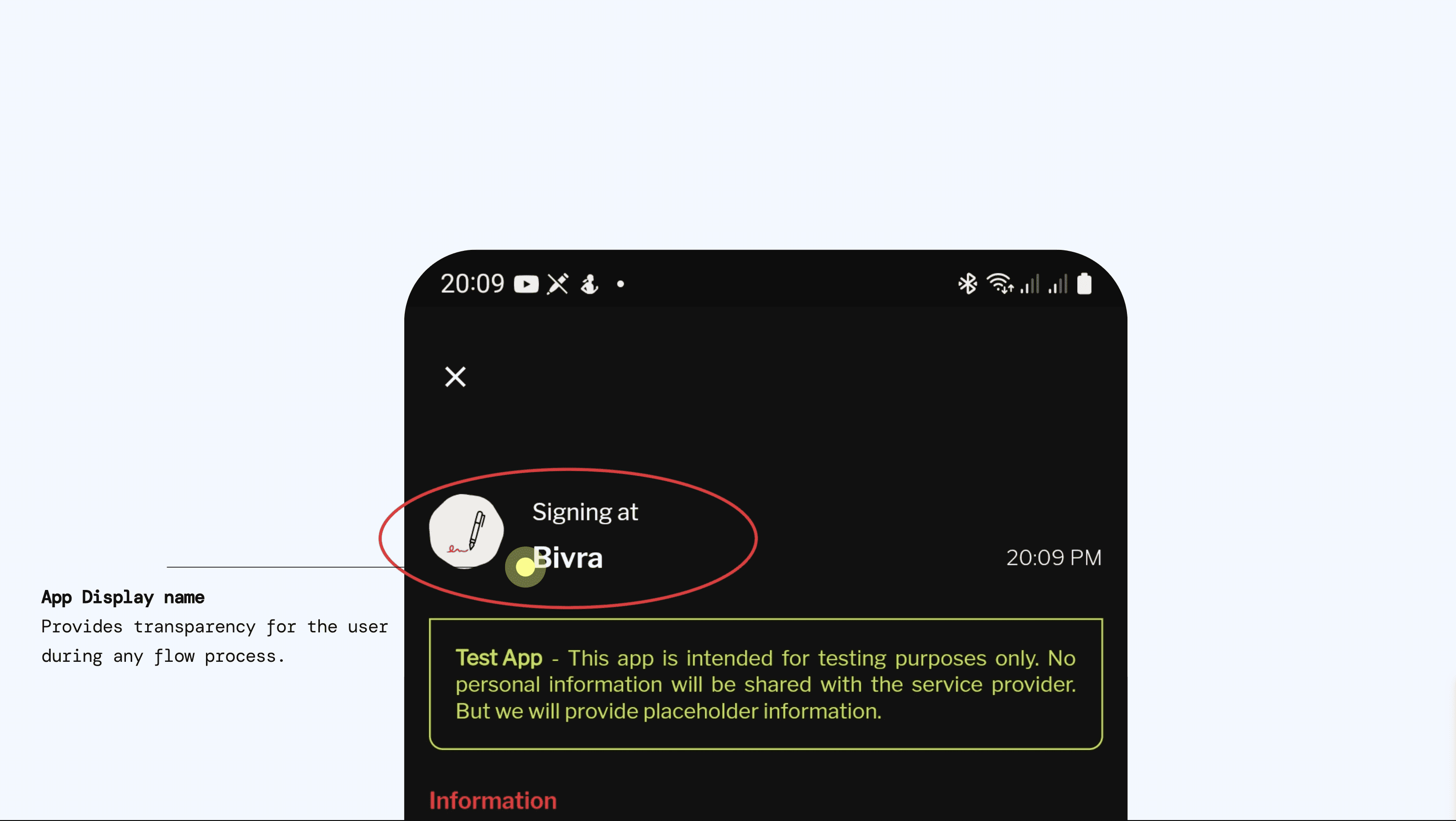
- Set a display name — this is what users see on flow requests; use a name they will recognise.
- Choose the products and application type that match your integration (authentication, signing, documents, etc.).
- Click Save.
Optional: follow the Guidde walkthrough for a click-by-click video of app creation and Quick Start setup.
Step 5 — Copy client ID and generate app secret
Open App settings for your new sandbox app.
| Field | Purpose |
|---|---|
Client ID (app_…) | Identifies the app in authorize, OIDC, and flow models |
| Client secret | Password-like credential for v2 — send as x-access-secret |
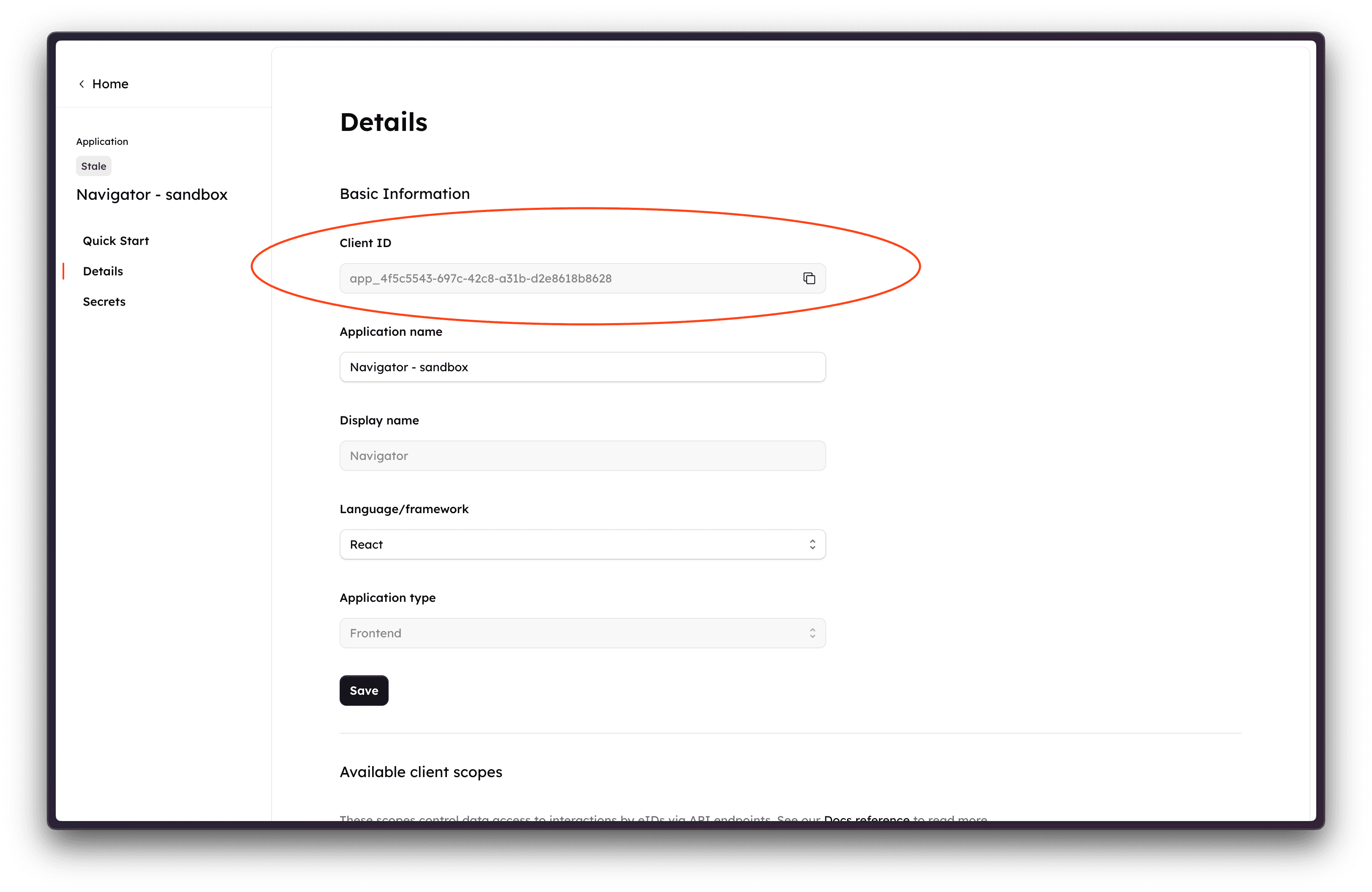
Generate a new client secret under API client → Create new client secret. Secrets are shown once — copy them immediately into your secrets manager or .env file.
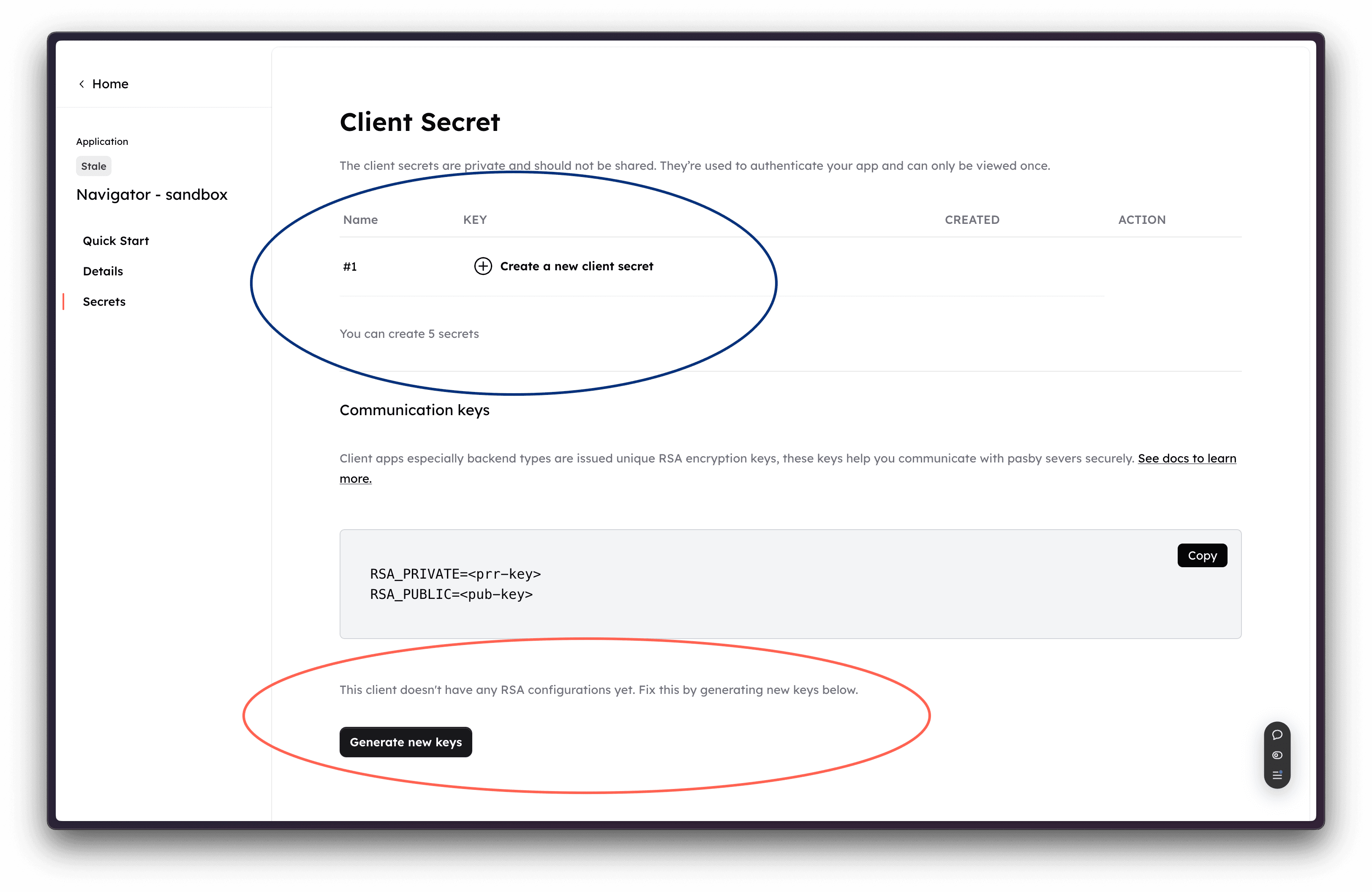
Client secrets are one-off credentials. Regenerate via Console if you suspect a leak — the previous secret stops working immediately.
Step 6 — Download communication keys
Backend stacks that decrypt identification claims need RSA communication keys (PEM files) for the app.
- Stay in App settings for your sandbox app.
- Download the app service file — a zip with
config.jsonand*.pemkeys.
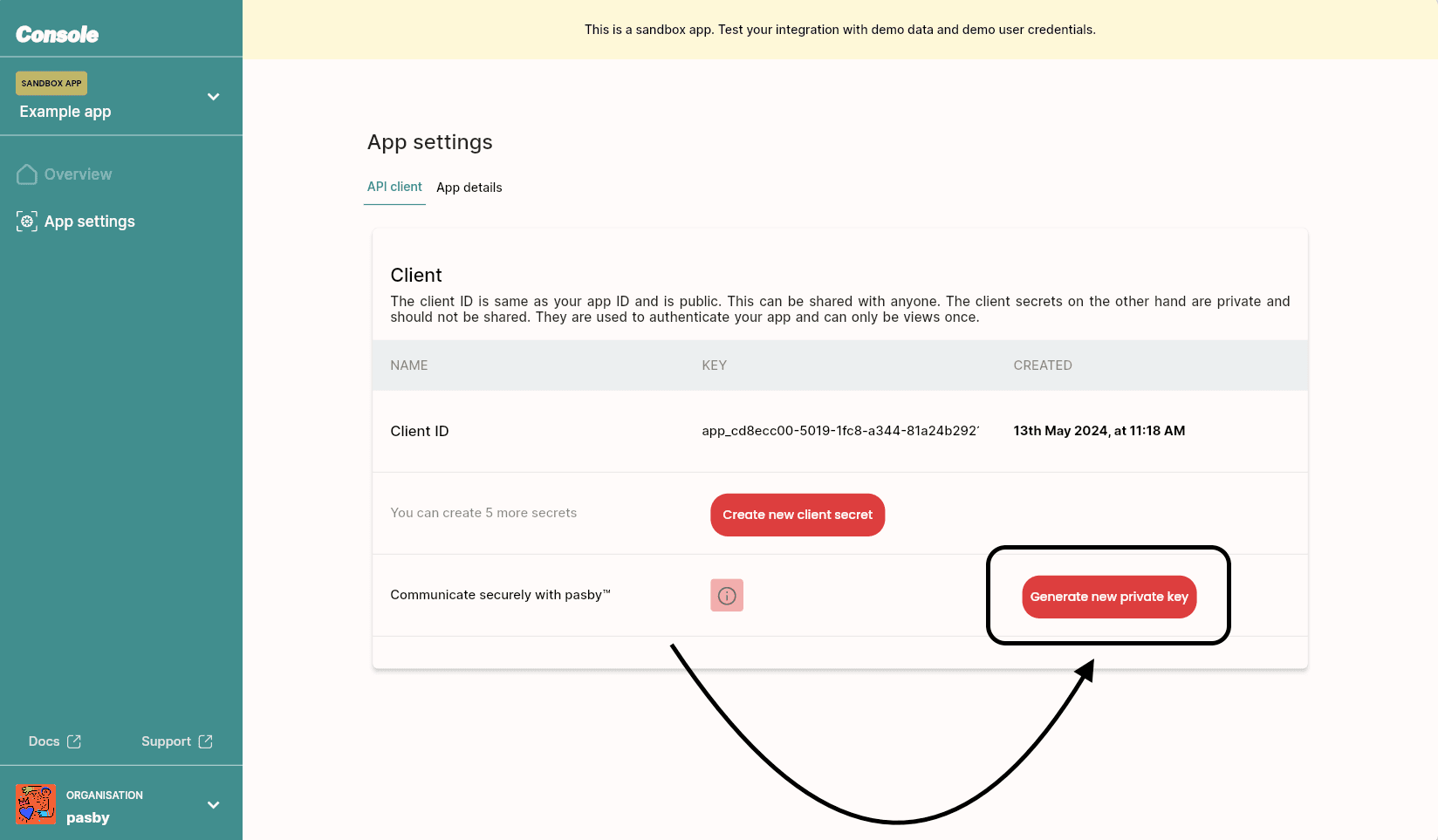
Store the private key on your server only. Use it with the decrypt walkthrough in Handling encrypted claims.
Step 7 — Wire credentials into your backend
Merge organisation and app credentials into environment variables or a server-side config file. A typical sandbox layout:
{
  "type": "app",
  "appid": "app_YOUR_APP_ID",
  "consumer": "bcn_YOUR_ORG_ID",
  "secret": "snb_YOUR_APP_SECRET",
  "privatekey": "-----BEGIN RSA PRIVATE KEY-----\n...\n-----END RSA PRIVATE KEY-----",
  "apikeys": {
    "live": "bk-live_YOUR_KEY",
    "test": "bk-test_YOUR_KEY"
  }
}
For your first call, you need at minimum:
x-api-key: bk-test_YOUR_KEY
x-access-secret: snb_YOUR_APP_SECRET
Content-Type: application/json
Point requests at the sandbox base URL: https://s.pasby.africa.
Sandbox vs production
| Sandbox | Production | |
|---|---|---|
| Base URL | https://s.pasby.africa | https://l.pasby.africa |
| API key prefix | bk-test_ | bk-live_ |
| App secret prefix | snb_ (typical) | prd_ (typical) |
| Billing pre-check | Skipped | Enforced |
Pair test keys with test secrets and live keys with live secrets. Mixing environments returns credential errors.
Production access requires an active billing plan — see pasby pricing and submit your app for review in Console when sandbox integration is complete.
Checklist before your first call
- Console account created and email verified
- pasby eID linked on your profile (if required for your org)
- Organisation API configuration generated —
bk-test_key copied - Sandbox app created with correct products/scopes
- Client ID and client secret saved server-side
- Communication PEM keys downloaded (if decrypting claims on your backend)
When the checklist is done, continue with Your first call or the Quickstart.
Related
- Credentials & environments — headers, v1 vs v2, global rate limits
- Your first call — REST wildcard or hosted OIDC
- Handling encrypted claims — decrypt after identification
- Support — credential rotation and production access